
Bring an existing work into NovelShaft
Choose your manuscripts and reference files to create a new work. This walkthrough covers file selection, decisions during the import, and checking the result.
1. Gather the files for your work
You can begin with one manuscript file or separate files for each chapter. Include character notes, plot outlines, and other reference material. You do not need to sort everything into manuscript and reference categories or convert it to a special format first.
Example file formats
- Documents
- e.g. Word (.docx), PDF (.pdf), text (.txt), Markdown (.md)
- Tables & data
- e.g. Excel (.xlsx), CSV (.csv), JSON (.json)
- Images
- e.g. PNG (.png), JPEG (.jpg / .jpeg), WebP (.webp), GIF (.gif)
- Archives
- e.g. ZIP (.zip), 7z (.7z), RAR (.rar), TAR (.tar / .tar.gz / .tgz)
Images are saved as image references. If a file cannot be read because of its format or contents, you will be notified during the import.
- Select one file, multiple files, a folder, or an archive such as ZIP. If your browser cannot select folders, use multiple files or a ZIP archive.
- The current upload limits are 25 MB per file, 100 MB in total, and 500 files. Archives also have limits on their expanded size and file count. Check the limits shown before starting.
- An import creates a new work. It does not add files to or overwrite an existing work.
The fictional example, The Rainy Harbour, includes old and new versions of Chapter 1, Chapter 2, character notes, and an unreadable legacy archive. Select any screenshot to enlarge it.
2. Choose files under “New work”
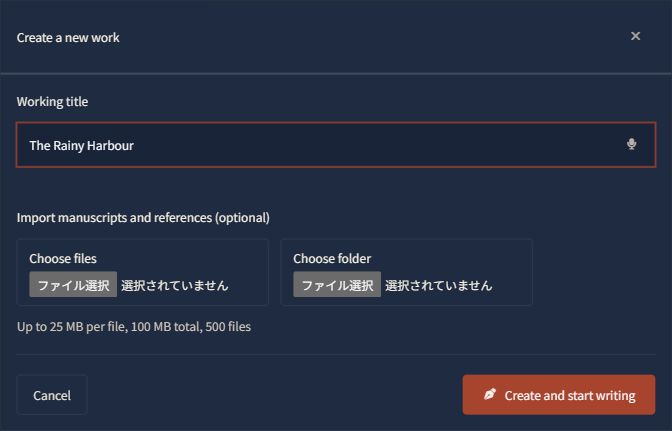
Open “New work” in the project list and enter a title. Under “Import manuscripts and references (optional),” choose files or a folder.
The selected files appear in a list. You can add more or remove files you do not want to import. Check the selection, then choose “Start import (100 points).”
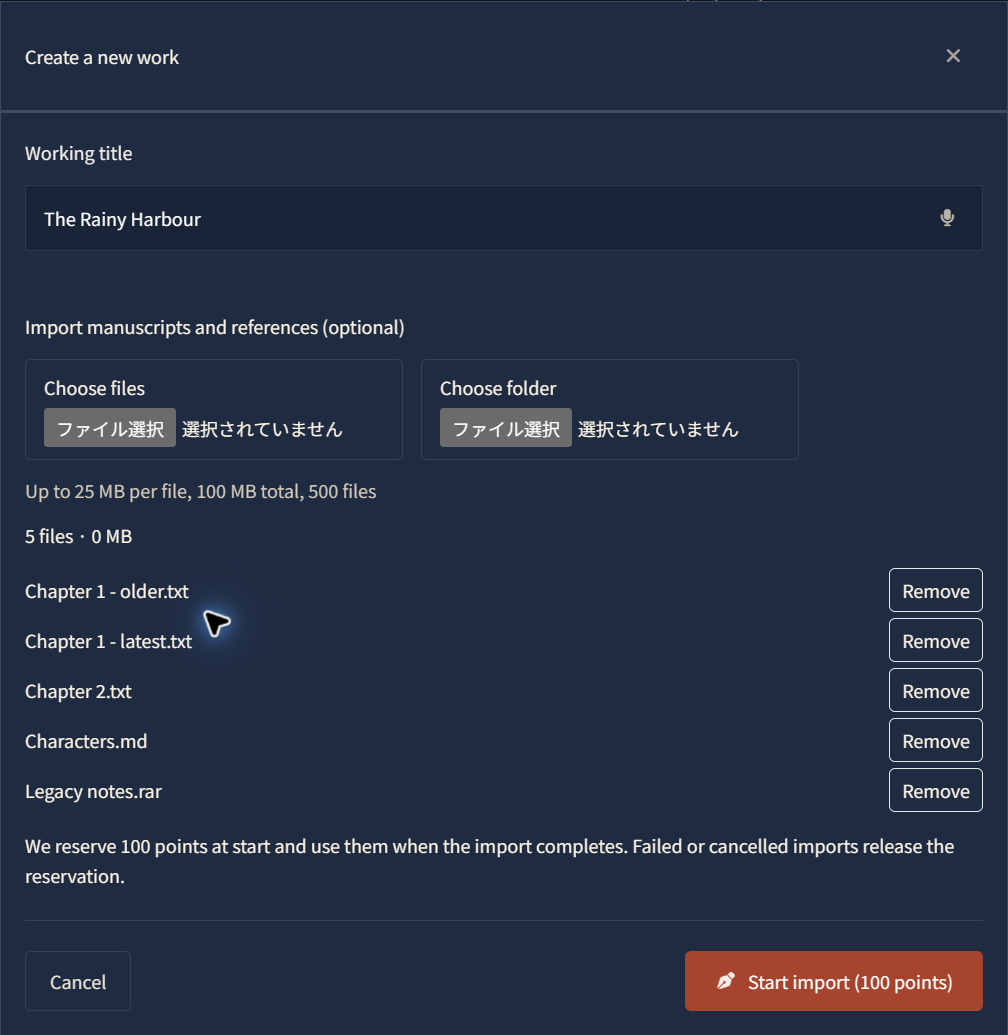
The import reserves 100 points at the start and uses them on completion. Failed or cancelled imports release the reservation. Completing an import with omissions that you have agreed to also uses 100 points.
3. Follow the progress
After you start, the page shows the current task, such as checking the file structure, reading files, or saving. If it takes time, check this page instead of starting a duplicate import.
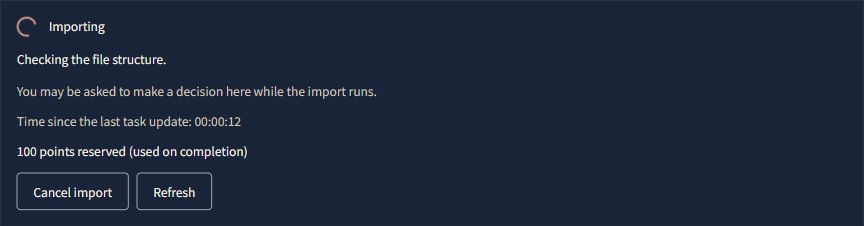
The import may need your judgment along the way. When a decision is needed, a notice appears and the browser tab title changes. Choose “Review decisions” to respond, even while other files are being processed. Open “Activity so far” to check earlier updates.
Once uploading finishes, processing continues if you leave the page, but pauses when it needs your answer. To return, choose the title under “Work imports” in the project list. If it says “Your decision is needed,” open the import to respond.

4. Make any necessary decisions
When the import needs your judgment, it shows the reason and available choices. You may be able to decide from the filenames or dates. To check the contents, choose “Download original” and open the file in a suitable app on your device.
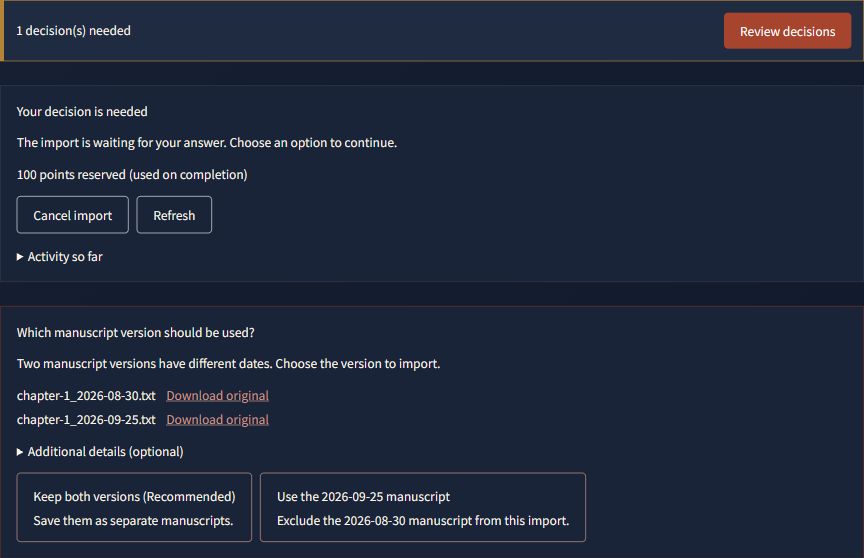
The questions depend on your files. Some can be asked from filenames and structure before reading the contents; others need the contents first. When there is no ambiguity, processing can continue without a question.
If a file cannot be read
Check the reason if a file cannot be read, for example because its format is unsupported or it is damaged. In this example, you can continue without the encrypted legacy RAR archive or cancel. If the missing material is essential, cancel, export it in another format or extract the archive, and start a new import.
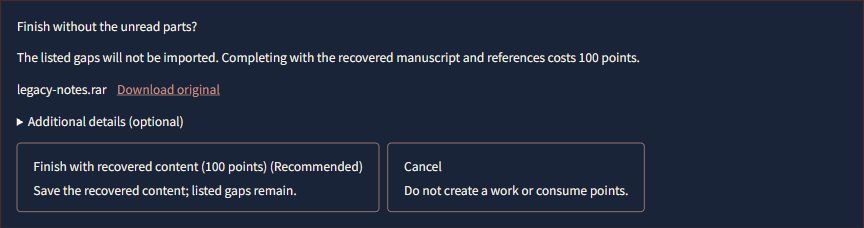
Selecting a PDF, Word document, or spreadsheet does not guarantee that every part can be read correctly. Standalone images are kept as image references. ZIP, TAR, TAR.GZ, 7z, and RAR are supported, but encrypted, split, or damaged archives may not be readable.
5. Check the result and open the work
When processing finishes, review “Results by file.” Scroll within the list if it contains many files. Check which files became manuscripts or reference materials and which were excluded, then choose “Open work.”
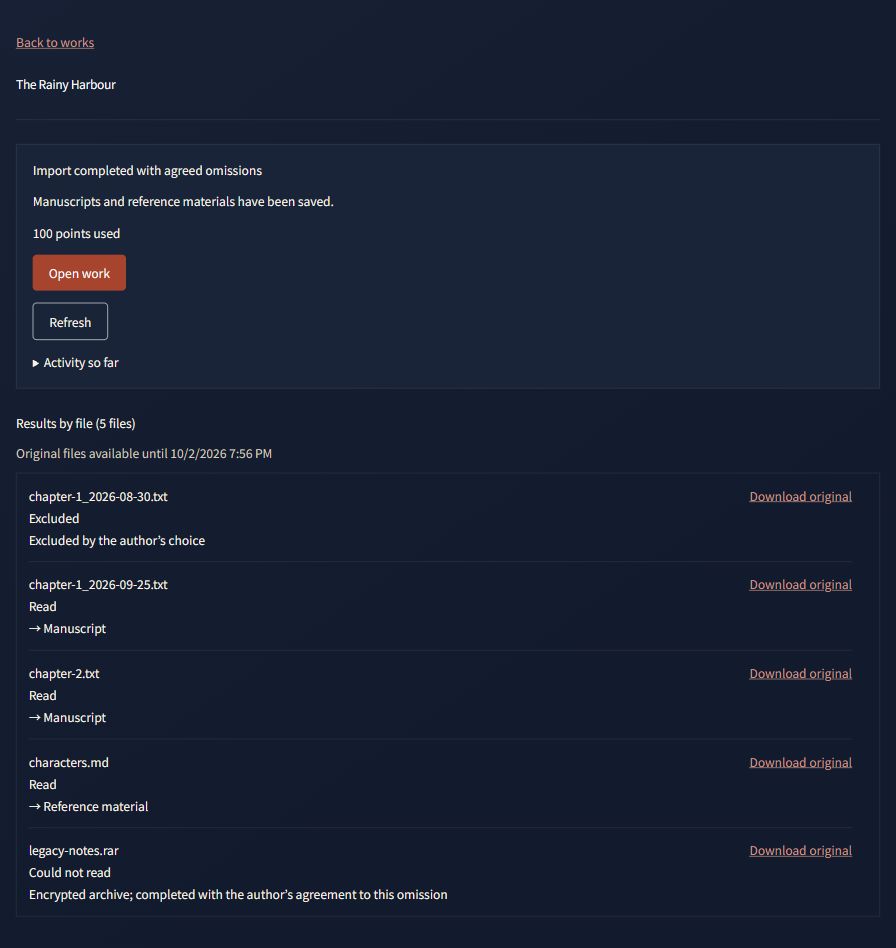
After opening the work, compare it with your originals: chapter order, missing passages, important character or world details, and any images you need. Keep your original files until you have checked the result.
Original files on the import page have a retention deadline, currently seven days from the start. Check the date shown and download them beforehand if needed. This deadline applies to the uploaded originals; it does not mean the new work disappears after seven days.