
Build a convincing world
Explore real events and historical sources with the AI. Use what you learn to imagine the customs and institutions of your fictional world.
Preview — store release is being prepared. Installation is not available yet.
NOVELSHAFT · CHROME
Explore worlds, characters, and plots with NovelShaft’s AI, using articles, historical sources, and news. Ask in your usual writing chat and turn what you learn in Chrome into ideas for your novel.
Desktop Chrome 133+, extension 1.1+, and a NovelShaft account. Normal AI allowance and plan conditions apply. External services have their own terms and fees.
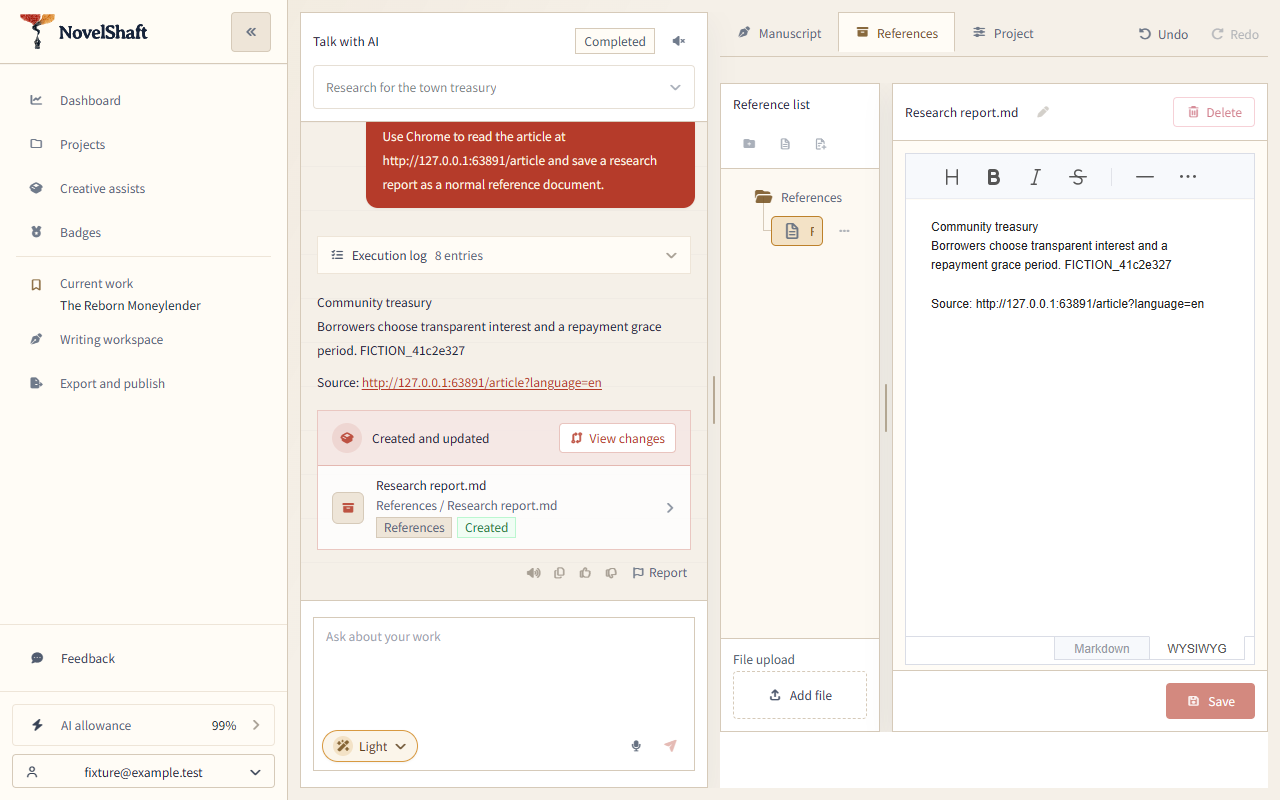
Discuss ideas, work what you learned into your plot, or ask for a report. Continue in the same chat and choose how to use the information for your story.
Actual writing UI from a local test with fictional sources and scripted model responses. Open for the original image.
On a site you have allowed, a NovelShaft indicator shows when the AI reads, enters text, or clicks. A blue outline and a cursor mark the input or button being used, while you can still browse and click the page.
Available in extension 1.1.4+. The indicator disappears after an operation or disconnection. Stop the AI from your usual NovelShaft chat.
Explore real events and historical sources with the AI. Use what you learn to imagine the customs and institutions of your fictional world.
Discuss the experiences behind an article or news story and explore how they could shape your character’s choices and motivations.
Work your research into a plot, discuss ideas from a supported external tool, or collect what matters in a report. Choose what helps your writing.
Use this page’s store link, verify the publisher, then pin the extension to the Chrome toolbar for easy access to site permissions.
Open a work and ask, for example: ‘Use Chrome to read this article and suggest a fantasy lending system.’ Include the URL and what you want to do with the knowledge.
The AI opens a Chrome tab. Open the NovelShaft extension, check the displayed site, choose Allow this site, and answer Chrome’s prompt. Access is granted separately per site.
You handle passwords and authentication challenges in Chrome. The extension uses the visible page after sign-in without importing your credentials.
Before a click, the chat shows the actual site, control, and purpose. Approve to continue or decline to leave the action undone. Stop the running request whenever needed.
The result is used in your current request. You can ask for a saved report or prose when you need one.
The connection is limited to tabs opened for this work and request. Site permissions can be revoked in the extension popup. Unrelated tabs and browsing history are not collected. Captured text goes to NovelShaft and its AI for the current request, even when you do not save a reference.
Read the data and privacy detailsNo. It works with supported HTTPS articles, news sites, reference sites, and other tools in Chrome.
You can keep discussing what you learned in the same chat. Ask for a saved reference, a report, or a manuscript revision when you want one.
Check the extension is enabled and updated, reload NovelShaft, and check site access. An input or click with an unknown result is not automatically repeated; check the source page before continuing.
The extension reads visible text in the top-level page and uses ordinary text controls, links and buttons. Embedded frames, image-only content, complex controls and authentication challenges may require your help. Download and upload files through the existing flows.