
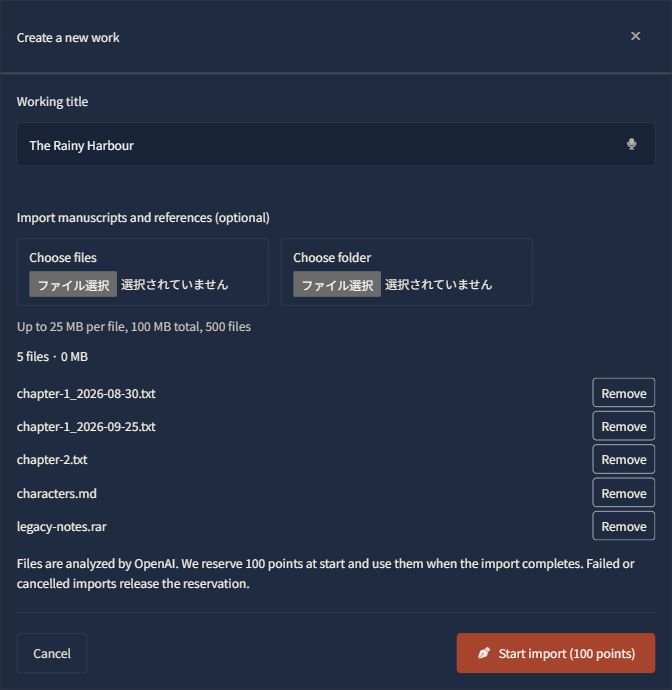
A manuscript in Word, world notes in Excel, character references spread across folders: you can now bring these files into NovelShaft and continue working on your story.
In the web app, open “New work” in the project list, enter a title, and select your files. Start with a single file, multiple files, a folder, or an archive such as ZIP. AI organizes the contents into manuscripts and reference materials, asking for your decision when needed—for example, which version to use.
An import reserves 100 points at the start and uses them on completion. Failed or cancelled imports release the reservation. If some files cannot be read, you can decide whether to import the rest. Completing an import with agreed omissions also uses 100 points.
Upload limits are 25 MB per file, 100 MB in total, and 500 files. Some content may not be readable, so compare the result with your originals, especially chapter order and important settings. Standalone images are saved as image references.
The migration guide shows file selection, progress, decisions, and results with screenshots.