
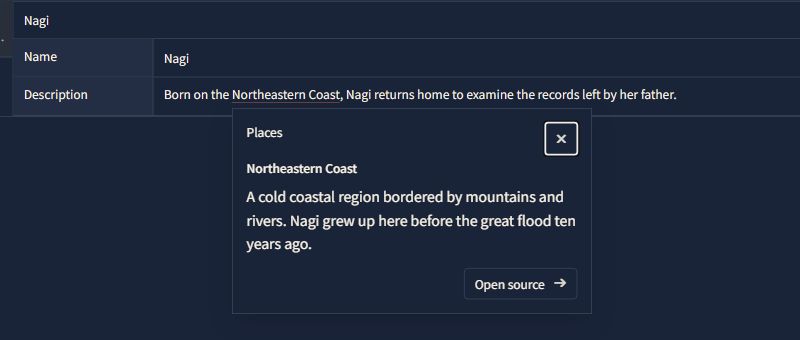
While writing a character's description, you may want to check their hometown setting. Or you may want to revisit the scene where you planted a clue. On Web, you can now attach a link to words in a reference document and open related references or manuscript sections in the same project.
Choose a whole reference document, an individual entry such as a character or place, or a manuscript heading or text block. You can link to unnamed entries without adding a title or a number.
Select the words you want to link. In structured references, choose Add link; in Markdown references, choose Add project link. Then select the destination. You can preview a short excerpt without leaving your document. Choose Open source to read more, then Back to editing position to return to your original document and input position.
At the destination, Links to this item shows which reference documents link to it. You can connect related notes without copying the same information into both documents.
This update supports links from structured and Markdown references on Web. Creating links from manuscript text, linking to a specific passage within a manuscript block, and link controls in the mobile app are not yet supported.
Close and reopen the web app before using this update. An older web session may be unable to save edits that duplicate a structured reference row. The current mobile app may also be unable to save edits that delete a row or an outline entry from a structured reference. Use the latest web app for row deletion and duplication.